Download the Widex Apps
- Click on the download badges and open the App Store (for iPhone) or Google Play (for Android)
- If neccessary search for "Widex Allure app" or ''Widex Moment App''
- Tap "Download" or "Install"
- Once installed, open the app and follow the on-screen instructions to pair it with your hearing aids.
- Allow the app to access Bluetooth and notifications when prompted — this ensures full functionality
Widex Allure App


Widex Moment App
Widex app troubleshooting
If you're experiencing difficulties with the Widex app, please follow these steps to help resolve the issue and restore normal functionality:
If too many apps are running in the background, general app performance can suffer. Let's start with the simplest of solutions and turn the phone off and back on. Completely power the phone off. After 30 seconds, power the phone back on. When the phone is fully powered on, launch the Signia app and check for functionality.
To restart the hearing aids:
- For rechargeable hearing aids, place them in the charger for 10 seconds. After 10 seconds, take the hearing aids back out. They will turn on automatically.
- For hearing aid that use exchangeable batteries, open and close the battery doors. If the batteries are close to being depleted, please exchange the batteries for a new one.
1. Tap and hold on the Widex app icon and choose the Uninstall/Delete option. NOTE: Uninstalling/ deleting the app will remove your favorite programs if you had saved any in the app.
2. Navigate to the Google Play store or the Apple App Store and search for the Widex app
3. Tap on the Install or download button (e.g. cloud icon with a down arrow) to reinstall the app
4. After reinstallation is complete, launch the app, accept the terms and conditions, and follow the pairing steps
5. If/when prompted for Bluetooth permissions, please grant the request
6. When the setup is complete, check for functionality
Please see the steps for reconnecting the hearing aids to your phone on the Connectivity & pairing page.
It's possible that the phone and/or the operating system of the phone is not compatible with the Widex app. Please check the compatibility requirements listed on the Device compatibility page.
Ensure that your smartphone and hearing aids are compatible with the app. Some features may not work with older hearing aid models or certain phone operating systems.
FAQs for the Widex apps
The Widex apps are compatible with the most hearing aids from Widex.
If you're not sure if your hearing aid model is compatible and cannot find this information on any literature, user guide, or any documentation provided by your hearing care provider, please contact your hearing care professional. They can also let you know whether the hearing aids have Bluetooth capabilities to take advantage of the Bluetooth-dependent features of the app.
The Widex Allure and Widex Moment apps offer you a wide variety of individual adjustment options enabling further personalization of your hearing experience:
- Battery status: Check the battery and connection status via a phone or Apple Watch.
- Change program: Easily switch between programs depending on the environment.
- Easily customize sound with tools like AI Quick Assistant (in Allure App), My Sound and Sound Sense Learn (in Moment App), Directional Focus, and Equalizer.
- Surrounding volume level: Adjust volume level, mute the microphone, or change Right/Left volume for a tailored hearing experience.
- Help and troubleshooting: Easy-to-follow installation and pairing instructions, including video guides.
- Other features: Include the Find My Hearing Aid function and more.
HOW TO PAIR YOUR HEARING AIDS
Looking for user guides or safety instructions?
Use our document library to find and download pdfs relevant for your product.
Widex Document Library
Need more support? Try out these sections.

Connectivity & pairing

Device compatibility

Accessories
A BETTER WAY TO CONNECT
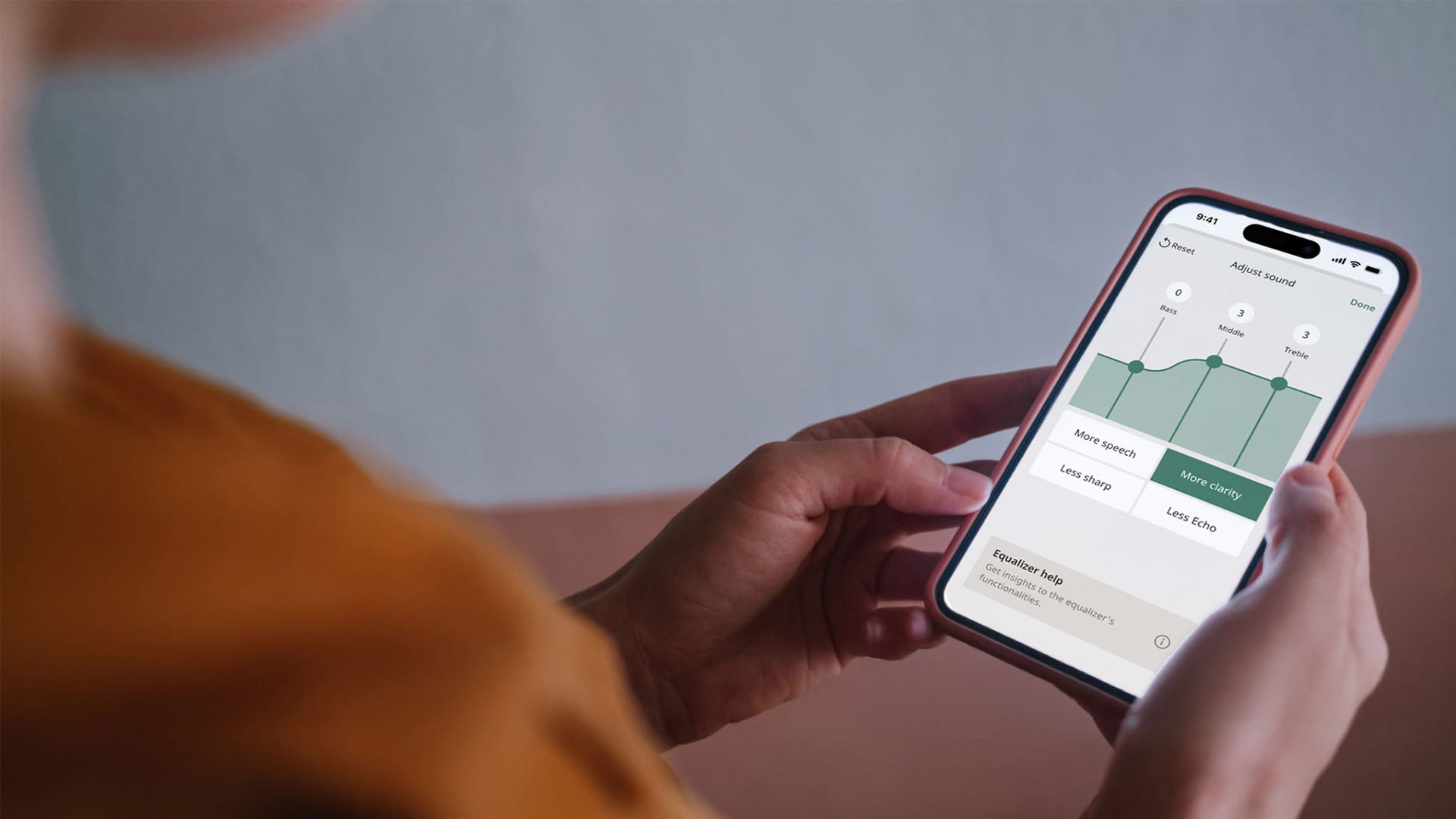
Widex Allure App
Enjoy quick onboarding, easy customization, improved accessibility features and more – so you can better interact with the world around you.

Widex AI Sound Assistant
With easy-to-follow instructions, a more personalized hearing experience is only a few clicks away.
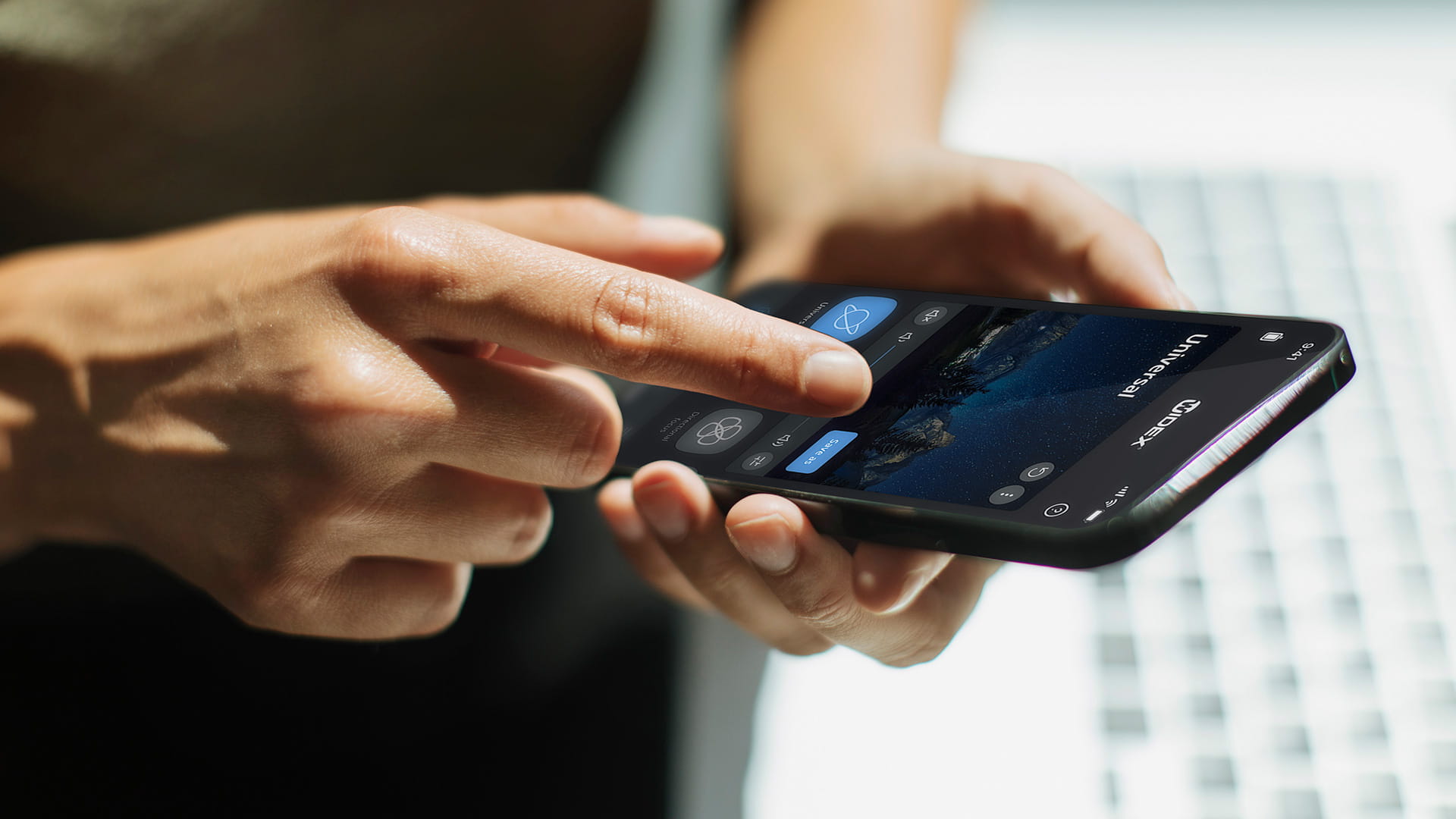
Widex Moment App
It’s never been easier to fine-tune your hearing, so you get exactly the sound you prefer – in exactly the moments that are important to you.