Troubleshooting for Widex hearing aids

The hearing aid is not working at all

Try this first:

1) Make sure the hearing aids are fully charged or have new batteries.

2) Restart the hearing aids. Rechargeable models: Place them in the charger for 5-10 seconds, then remove. Battery models: Open and close the battery door.

3) Ensure the charger is showing solid green lights.                                                                                       

4) If fully discharged, charge for at least 30 minutes                                                                                                                   

5) Observe the status LEDs on the charger. You can also check the status of the batteries from within the Widex app to see if the hearing aids are starting up and connecting to the phone.
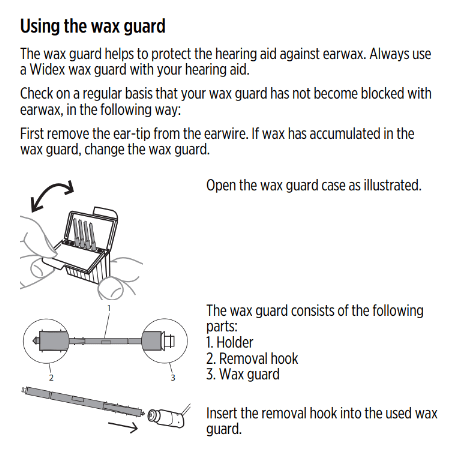
Many of Widex hearing aids have a wax guard near the speaker that protects against buildup. Replace it as soon as it looks clogged or as recommended by your hearing care professional. If additional wax guards are required, reach out to your hearing care provider.

Make sure your ears are not clogged with earwax. Your hearing care professional can inspect your ear canals to make sure they are clear of any earwax or obstruction that could prevent you from hearing the hearing aid output.

If the microphone openings of the hearing aids are clogged, this could prevent the hearing aid from receiving any sound, thereby muting any output. Use a cleaning brush, brush the microphone openings on the back/face/front of the hearing aid. These are usually tiny slits/openings near the buttons or battery door of the hearing aid. Visit your Hearing Care provider if a preliminary cleaning does not resolve. 
There may be a hardware issue, or a component of your hearing aids may need to be replaced. Please consult your hearing care provider for in-person troubleshooting
The issue may be related to Bluetooth connectivity. Please visit the Connectivity & pairing page for troubleshooting guidance. You can also find information on how to unpair and reconnect your hearing aids to your smartphone. 
Consult your hearing care professional.

The sound from the hearing aid is distorted

Reducing the volume- manually or by the Widex app can help. High volume may sometimes cause sound distortion, especially in noisy environment. 
Replace the battery manually. If  your hearing aids are rechargeable, make sure they are fully charged. Low power can affect sound clarity.
Replace the ear tip and wax guard.
 If distortion continues, your hearing care professional may need to check for internal damage or calibration issues.

The hearing aid is making a whistling sound

Remove and reinsert the hearing aid to ensure it fits securely and comfortably in your ear. A poor fit can cause sound to leak from the ear canal, which may be reamplified by the hearing aid and typically sounds like loud whistling. If the whistling continues, please consult your hearing care professional.


Try lowering the volume. Excess amplification can cause the hearing aid to feedback on itself.

Clean the ear piece carefully or replace it if necessary. Make sure the wax guard is not blocked.

The hearing aid is not charging

Make sure the charger is firmly connected to a working power outlet. Try a different socket if necessary, and always use the supplied power cable to ensure the correct voltage. 


Take the hearing aids out of the charger and reinsert them. Ensure there is no debris inside the charging wells of the charger.

Gently clean the hearing aids metal charging contacts with a soft, dry, cloth to remove dust, wax, or other residue. 

Use a dry cloth or soft brush to clean the gold charging base/pins. Do not use liquids.

More troubleshooting tips

Your hearing aids will automatically turn off when the battery is empty. Charge the hearing aids as soon as possible.


If the tones occur periodically, try charging the hearing aids for at least 30 minutes or replace the battery. Afterward, check if the tones persist. If the do, please consult your hearing care professional. 

 
Please see the Connectivity & pairing page and Device compatibility page for details on troubleshooting.

Need more support?

The troubleshooting tips didn't help or you encounter further problems? Try out these sections or consult your hearing care professional for support.

Widex connectivity

Connectivity & pairing

Widex compatibility

Device compatibility

Maintenance & cleaning

Find your Hearing Care Provider

Consult the user guide of your hearing aid for more information

Use our document library to find and download pdfs relevant for your product.
 
Widex Document Library
Widex icon download
Go to the top