Bluetooth párování
Návod pro párování iPhone:
1. Ujistěte se, že je v nastavení telefonu povolena funkce Bluetooth.
2. Přejděte do Nastavení > Zpřístupnění > Sluchadla.
3. Vypněte a znovu zapněte sluchadla.
4. Vyberte sluchadla z nabídky MFi sluchadla a u každého sluchadla stiskněte tlačítko Spárovat.
5. Jakmile se zařízení zobrazí jako „spárované“, jsou vaše sluchadla spárována s telefonem a připravena k přenosu hudby a hovorů.
6. Otevřete aplikaci pro konkrétní zařízení a připojte sluchadla k aplikaci.
Důležité: Před zahájením vypněte Bluetooth v telefonu a poté telefon vypněte. Telefon znovu zapněte a poté znovu zapněte Bluetooth. Pokud sluchadla nebyla nikdy spárována, pak níže uvedené kroky 3–4 přeskočte:
1. Vypněte sluchadla – otevřením bateriových dvířek nebo držáku u sluchadel na jednorázové baterie, případně vložením sluchadel do nabíječky u dobíjecích sluchadel.
2. Stáhněte si aplikaci Widex Moment nebo Widex Allure z obchodu Google Play Store v závislosti na modelu vašich sluchadel.
3. Otevřete aplikaci Widex Moment nebo Allure.
4. Zapněte obě sluchadla, pokud máte pár.
5. Vyberte možnost Spárovat sluchadla.
6. Vyberte možnost Hledat.
7. Vyberte možnost Spárovat pro každé sluchadlo.
Párování je nyní dokončeno. Proveďte funkční test, abyste se ujistili, že vše funguje podle očekávání.
Sluchadla Widex používají vlastní protokoly Bluetooth pro Apple (MFi – Made For iPhone) a Google/Android (ASHA – Audio Streaming for Hearing Aids) k přenosu zvuku do sluchadel prostřednictvím signálu Bluetooth Low Energy (BTLE). Pamatujte na to, že ne všechny telefony Android podporují protokol ASHA, protože jeho implementace závisí na výrobci telefonu. Seznam telefonů Android, které jsme otestovali jako kompatibilní s ASHA, najdete na stránce kompatibility zařízení. Widex Allure také podporuje streamování LE Audio s kompatibilním telefonem Android.
Widex Allure je kompatibilní s TV-Play 2 a RC-DEX 2. Widex Moment je kompatibilní s TV-Play 2, TV-Play, Sound Assist, SoundConnect, COM-DEX a RC-DEX 2. Více na eshopu Widex.
Ano, je to možné, ale pouze u sluchadel Widex Moment, které podporují technologii 2.4 GHz v kombinaci se zařízením SoundConnect:
1. Vložte SoundConnect do USB portu počítače.
2. Restartujte sluchadla, aby se spustil proces párování. Sluchadla budou v režimu párování po dobu 3 minut.
3. Stiskněte a podržte tlačítko na zařízení SoundConnect, dokud se nerozbliká modré světlo. Následně tlačítko uvolněte.
4. Ujistěte se, že jsou sluchadla a SoundConnect od sebe vzdáleny maximálně 1 metr.
5. Trvalé zelené světlo na zařízení SoundConnect signalizuje, že párování bylo úspěšné. Pokud není párování úspěšné, zkuste sluchadla položit na horní část Sound Connect. Můžete zkusit spárovat jedno zařízení po druhém.
Nejlepší způsob, jak streamovat zvuk z televize pomocí sluchadel Widex, je použít TV Play nebo TV Play 2. Ověřte si u svého sluchadlového specialisty, zda jsou vaše sluchadla kompatibilní s tímto příslušenstvím, případně se podívejte na náš eshop.
iPhone menu - Nastavení > Zpřístupnění > Sluchadla:
- Přehrávání vyzváněcích tónů: Určuje, zda se vyzváněcí tóny příchozích hovorů budou přehrávat ve sluchadlech.
- Přehrávání systémových zvuků: Určuje, zda se systémové zvuky, jako jsou zvuky oznámení, kliknutí klávesnice, zvuky zamykání obrazovky atd., budou přehrávat ve sluchadlech, pokud telefon není v tichém režimu. Pokud je tato možnost zapnutá a telefon není v tichém režimu, systémové zvuky se nebudou přehrávat přes reproduktory telefonu.
- Směrování zvuku: Nastavuje výchozí cíl směrování zvuku, který iPhone používá pro zvuk hovorů a zvuk médií (dvě samostatná nastavení). Pokud je vybrána možnost Nikdy neslyšet zařízení, iPhone nebude výchozí typ zvuku směrovat do sluchadel. Sluchadla lze však stále ručně vybrat pro přenos zvuku pomocí nativních ovládacích prvků iOS (viz související téma v části Časté dotazy níže).
- Ovládání blízkých zařízení: Umožňuje ovládat nastavení sluchadel na zařízeních iOS, která jsou také spárována se sluchadly nebo sdílejí stejné Apple ID. Doporučujeme tuto možnost vypnout, aby nedocházelo k neočekávaným interferencím.
- Předávání zvuku: Pokud je tato možnost zapnutá, umožňuje jednomu zařízení iOS přednost před jiným, pokud jde o streamování zvuku. Doporučujeme tuto možnost vypnout, aby nedocházelo k neočekávaným interferencím.
- Kompatibilita se sluchadly: tato možnost se používá pouze v případě, že je telefon během hovoru přiložen ke sluchadlům a zvuk hovoru prochází sluchátkem telefonu (tj. tradiční způsob přijímání hovoru). Pokud je hovor streamován nebo je zapnutý hlasitý odposlech, nemá tato možnost žádný účinek.
Kliknutím na sluchadla uvedená v sekci MFi sluchadla a se stavem Připojeno se zobrazí další možnosti:
- Streamovat do pravého/levého sluchadla: umožňuje iPhonu streamovat zvuk do sluchadel. Vypněte tyto možnosti, pokud nechcete streamovat zvuk do sluchadel, ale chcete zachovat připojení Bluetooth pro účely dálkového ovládání.
- Nastavit samostatně: umožňuje samostatné ovládání úrovní mikrofonu levého a pravého sluchadla.
- Posuvníky úrovně mikrofonu: ovládají, jak hlasitě nebo tiše jsou okolní zvuky zesilovány ve sluchadlech.
- Předvolby: jedná se o programy sluchadel, které do vašich sluchadel nastavuje sluchadlový specialista.
- Spustit živý poslech: proměňte svůj iPhone v dálkový mikrofon. Když je tato funkce zapnutá, podejte iPhone svému partnerovi v konverzaci a požádejte ho, aby do něj mluvil. Zvuk zachycený mikrofonem iPhone bude streamován přímo do sluchadel. Při používání této funkce můžete zvýšit úroveň přenosu pomocí tlačítek hlasitosti na boku telefonu.
- Zapomenout toto zařízení: tímto se sluchadla odpojí od iPhone.
Ano. Pokud ostatní zařízení iOS sdílejí stejné Apple ID, může se toto spárování automaticky synchronizovat s jiným zařízením přes iCloud. Streamování však může probíhat pouze z jednoho zařízení. Nejlepší je proto vypnout Bluetooth na zařízení, ze kterého právě nestreamujete. Pokud chcete přepnout, nejprve vypněte Bluetooth na zařízení, které právě streamuje do sluchadel. Tím se uvolní sluchadla pro streamování z druhého zařízení. Na druhém zařízení zapněte Bluetooth. Sluchadla by se měla automaticky připojit. Nyní zkuste streamovat. Chcete-li se přepnout zpět, postupujte stejně: nejprve vypněte Bluetooth na streamovacím zařízení a poté zapněte na druhém zařízení.
Jak spárovat sluchadla?
Funkce připojení
Rychlý průvodce
Návody k párování pro všechna sluchadla Widex Moment™ s podporou Bluetooth
Řešení problémů
Nejprve se ujistěte, že sluchadla nejsou přicpaná mazem či nějakou další nečistotou, což by bránilo přenosu zvuku. Pokud sluchadlo normálně zesiluje okolní zvuky a přenos zvuku je jediný, který nefunguje, postupujte podle pokynů pro zrušení párování a opětovné spárování uvedených v příslušné části výše.
Zkuste aplikaci násilně ukončit.
U telefonů iPhone to znamená použít pohyb pro zobrazení dříve otevřených aplikací a přejetím prstem odsunout aplikaci Widex pryč. Konkrétní postup najdete v tomto článku společnosti Apple: https://support.apple.com/en-us/109359.
U telefonů s Androidem přejděte do Nastavení telefonu > Aplikace > Aplikace Widex > a vyberte možnost Vynutit zastavení.
Restartujte telefon > znovu otevřete aplikaci a zkontrolujte, zda se připojení Bluetooth znovu naváže.
Pokud problém přetrvává, zkontrolujte oprávnění Bluetooth v nastavení telefonu. Můžete zkusit odpojit a znovu spárovat sluchadla s Bluetooth telefonu. Otevřete aplikaci a otestujte připojení.
Pokud se aplikaci stále nedaří nastavit Bluetooth, odinstalujte ji a nainstalujte znovu. Po reinstalaci otevřete aplikaci a otestujte připojení k naslouchadlům.
Pokud během streamování zvýšíte pomocí tlačítek hlasitosti úroveň streamování na 100 % a streamovaný zvuk je stále příliš tichý, nejprve se ujistěte, že jsou ušní koncovky/ušní tvarovky a reproduktory sluchadel čisté a bez nečistot či ušního mazu, což by mohlo bránit výstupu zvuku. Pokud by byl výstup zablokován, nebylo by optimální ani zesílení okolních zvuků. Pokud okolní zvuky zní dobře a úroveň streamování v telefonu je nastavena na 100 %, ale stále to nestačí, otevřete aplikaci a upravte hlasitost během streamování. Pokud problém přetrvává, navštivte svého audiologa.
Pro iPhone:
- Zkontrolujte, zda je zapnutá funkce přehrávání vyzváněcích tónů. Přejděte do Nastavení telefonu > Zpřístupnění > Sluchadla a zkontrolujte, zda je zapnutá funkce „Přehrávat vyzvánění“.
- Přejděte do Nastavení telefonu > Zvuky a haptika a posuňte posuvník na vyšší hodotu u Vyzvnění a upozornění.
Streamování na Android ASHA:
Přejděte do nabídky Hlasitost telefonu (např. Nastavení > Zvuky a vibrace > Hlasitost) a ujistěte se, že je posuvník Média nastaven na odpovídající úroveň. Dále, pokud je telefon v režimu Zvuk, ujistěte se, že je posuvník pro Zvonění nastaven na odpovídající úroveň. Pokud je telefon v režimu Vibrace, nebude se vyzváněcí tón do sluchadel přenášet. Pokud je telefon v režimu Ztlumit, je úroveň přenášeného vyzváněcího tónu řízena úrovní posuvníku Média a vyzváněcí tón nebude přehráván z reproduktorů telefonu.
Streamování zvuku Android LE Audio:
Hlasitost streamovaného vyzváněcího tónu je řízena hlasitostí hovoru (tj. jak hlasitě slyšíte volajícího). Při příštím streamování telefonního hovoru zvyšte hlasitost hovoru pomocí tlačítek hlasitosti na boku telefonu. Tím se zvýší hlasitost streamovaného vyzváněcího tónu při příštím hovoru. Upozorňujeme, že pokud je posuvník pro vyzvánění v nabídce Hlasitost telefonu nastaven na příliš nízkou úroveň, dojde tím k ztlumení i streamovaného vyzvánění. Pokud je vyzvánění přehrávané z telefonu příliš hlasité, doporučujeme používat telefon v režimu Vibrace nebo Ztlumit.
Časté kladené otázky a odpovědi (FAQs)
V současné době sluchadla Widex technologii Auracast nepodporují. Ačkoli některá sluchadla podporují standard Low Energy Audio, kompatibilita s Auracastem klade ještě další hardwarové a softwarové požadavky. Neustále sledujeme trh se spotřební elektronikou z hlediska kompatibility s Auracastem a míry jeho přijetí, zejména pokud jde o veřejnou infrastrukturu. Jakmile bude technologie Auracast integrována ve větším měřítku, zareagujeme odpovídajícím způsobem, abychom zajistili, že naše budoucí sluchadla umožní uživatelům využívat zařízení a technologie Auracast.
Chcete-li přesměrovat zvuk tak, aby se přehrával přes reproduktory telefonu, použijte vestavěná ovládací tlačítka.
V případě iPhone použijte možnost AirPlay v Ovládacím centru systému iOS. Informace o tom, jak otevřít Ovládací centrum, najdete v následujícím článku společnosti Apple: https://support.apple.com/en-us/108330. Když je Ovládací centrum otevřené, klepněte na ikonu AirPlay v pravém horním rohu mediálního pole (pole obsahující tlačítka pro přetočení zpět, přehrávání/pozastavení a přetočení vpřed). Ikona může vypadat jako trojúhelník s vycházejícími čarami, jako ucho nebo reproduktor se symbolem Bluetooth. Klepnutím na tuto ikonu se zobrazí seznam cílových zařízení pro výstup zvuku. Vyberte iPhone pro výstup zvuku přes reproduktory telefonu.
V systému Android přejeďte prstem dolů z horní části (někdy z pravého horního rohu) obrazovky telefonu, aby se zobrazilo menu Rychlé nastavení. Vyhledejte možnost Výstup médií. Pokud tam je, klepněte na ni a použijte ji k výběru cíle pro výstup zvuku. Pokud možnost Výstup médií není k dispozici, vyhledejte oznamovací kartu patřící aplikaci, která streamuje zvuk (např. Spotify). Na kartě by mělo být tlačítko, které označuje, kam aplikace aktuálně vysílá zvuk (např. do sluchadel). Klepněte na něj a vyberte telefon, aby se zvuk přehrával z reproduktorů telefonu.
Až budete hotovi se sdílením zvuku přes reproduktory telefonu, použijte stejný postup k přepnutí směrování zvuku zpět do sluchadel.
Pokud máte sluchadla Widex Allure: Během streamování zvuku otevřete aplikaci Widex Allure. Nastavte si podle svých preferencí poměr hlasitosti telefonu a okolního zvuku. Můžete také klepnout na „Nastavit zvuk“ a poté pomocí posuvníků upravit „Ekvalizér“ pro hluboké, střední a vysoké frekvence. Můžete také použít tlačítka pro zvýraznění řeči, vyšší srozumitelnost, zmírnění ostrosti a potlačení ozvěny, která automaticky upraví ekvalizér.
Pokud máte zařízení Widex Moment: Během streamování zvuku otevřete aplikaci Widex Moment. Klepněte na "vyhledejte obrázek tlačítek v aplikaci" a "obrázek". Můžete nastavit „Ekvalizér“ pomocí posuvníků pro pro hluboké, střední a vysoké frekvence. Můžete také použít tlačítka pro zvýšení srozumitelnosti řeči, zvýšení čistoty, snížení ostrosti a snížení ozvěny, což automaticky upraví ekvalizér. Alternativně můžete také přejít do mixéru zvuku a nastavit větší podíl okolního zvuku nebo větší podíl streamovaného zvuku.
Pokud vám tato nastavení nevyhovují, obraťte se na svého audiologa, který provede další úpravy.
V současné době je tato funkce u modelu Widex Allure dostupná pouze pro kompatibilní modely iPhone.
Funkce handsfree pro obousměrné hovory je v současné době k dispozici u modelů Widex Allure a kompatibilních modelů iPhone. U modelů Widex Moment a Magnify lze handsfree hovory realizovat prostřednictvím Bluetooth příslušenství, jako je Widex Sound Assist nebo Com-Dex. V souladu s protokolem Bluetooth Low Energy může být výkon Bluetooth obecně ovlivněn, pokud je mobilní zařízení uloženo v kapse, protože fyzické překážky a blízkost těla mohou rušit přenos signálu.
Je možné, že je hovor zpracováván prostřednictvím funkce HandsFree sluchadel, při které mikrofony sluchadel snímají váš hlas. Proto je také možné, že mikrofony sluchadel zachycují příliš mnoho okolního hluku. Zkuste následující možnosti:
iPhone:
Pokud je zapnutá funkce HandsFree, lze ji vypnout přímo v iPhonu. Pokud právě netelefonujete, otevřete kontextové menu sluchadel MFi trojitým stisknutím bočního tlačítka (nebo tlačítka Domů, pokud je podporováno) na iPhonu. Pokud se sluchadla zobrazí v seznamu, ale pod nimi nejsou žádné další možnosti, klepněte na jejich název a rozbalte menu. Přejděte dolů a najděte možnost Vstup mikrofonu (Mic input) a vypněte Vstup mikrofonu (Mic input). Nyní bude váš hlas snímán mikrofonem iPhonu namísto mikrofonů sluchadel. Mikrofon iPhonu má pokročilejší funkce pro odfiltrování okolního hluku a detekci hlasu během telefonních hovorů.
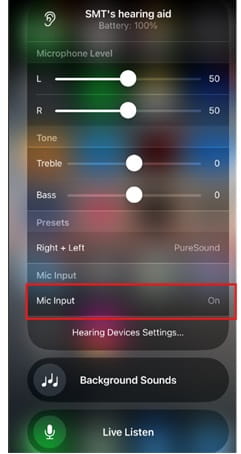
Zařízení iOS:
Přejděte do Nastavení > Zpřístupnění > Sluchadla > Směrování audia a změňte nastavení u položky Zvuk hovorů nebo Zvuk médií na Nikdy sluchadla. Při nastavení na Nikdy sluchadla iPhone ve výchozím nastavení nebude tento konkrétní typ zvuku přenášet do sluchadel, i když je možné sluchadla stále ručně vybrat prostřednictvím uživatelského rozhraní telefonu (např. na obrazovce hovoru nebo v Ovládacím centru).
Zařízení Android:
Neexistuje žádný způsob, jak nastavit telefon tak, aby ve výchozím nastavení nepoužíval sluchadla. Pomocí uživatelského rozhraní telefonu lze přepnout směrování zvuku tak, aby nepoužívalo sluchadla (např. tlačítka na obrazovce hovoru nebo rozbalovací nabídka pro směrování zvuku médií – viz výše uvedené často kladené otázky týkající se sdílení zvuku s ostatními).
Ne, inteligentní asistenty, jako je Siri, nelze aktivovat pomocí sluchadel (např. poklepáním na sluchadla nebo stisknutím tlačítka). Inteligentního asistenta aktivujte pomocí hlasových příkazů, které zachytí reproduktory telefonu, nebo pomocí ovládacích prvků na telefonu.
Ne, spouštění a pozastavování streamovaného zvuku by se mělo provádět na displeji telefonu pomocí ovládacích prvků uživatelského rozhraní, které nabízí telefon nebo streamovací aplikace.
Potřebujete další pomoc? Podívejte se do těchto sekcí.

Aplikace Widex

Kompatibilita

Příslušenství
LEPŠÍ ZPŮSOB, JAK SE PROPOJIT
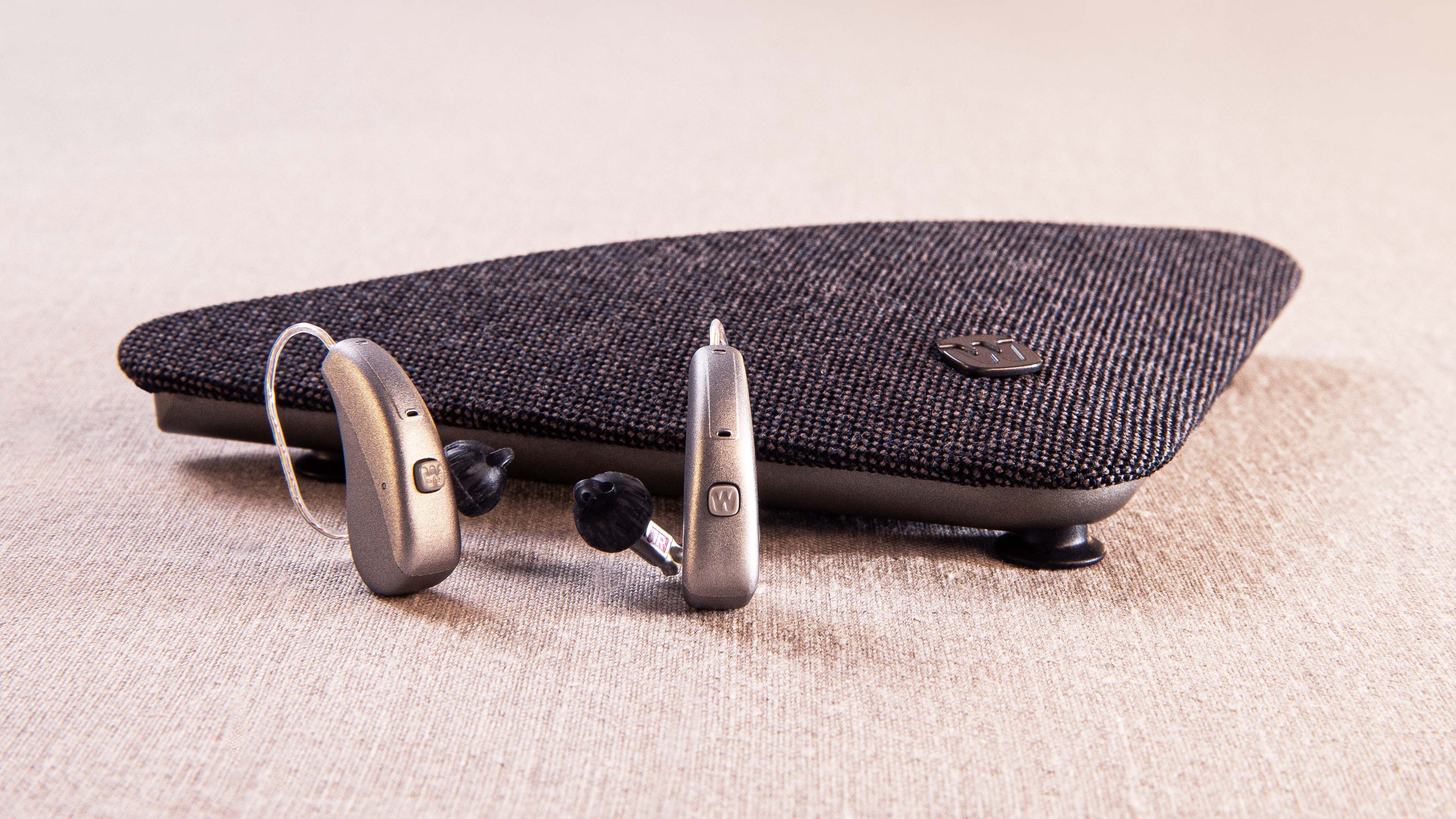
Widex TV Play
Vychutnejte si stabilní a vysoce kvalitní zvuk přenášený přímo z televize do vašich sluchadel – a to stylově.
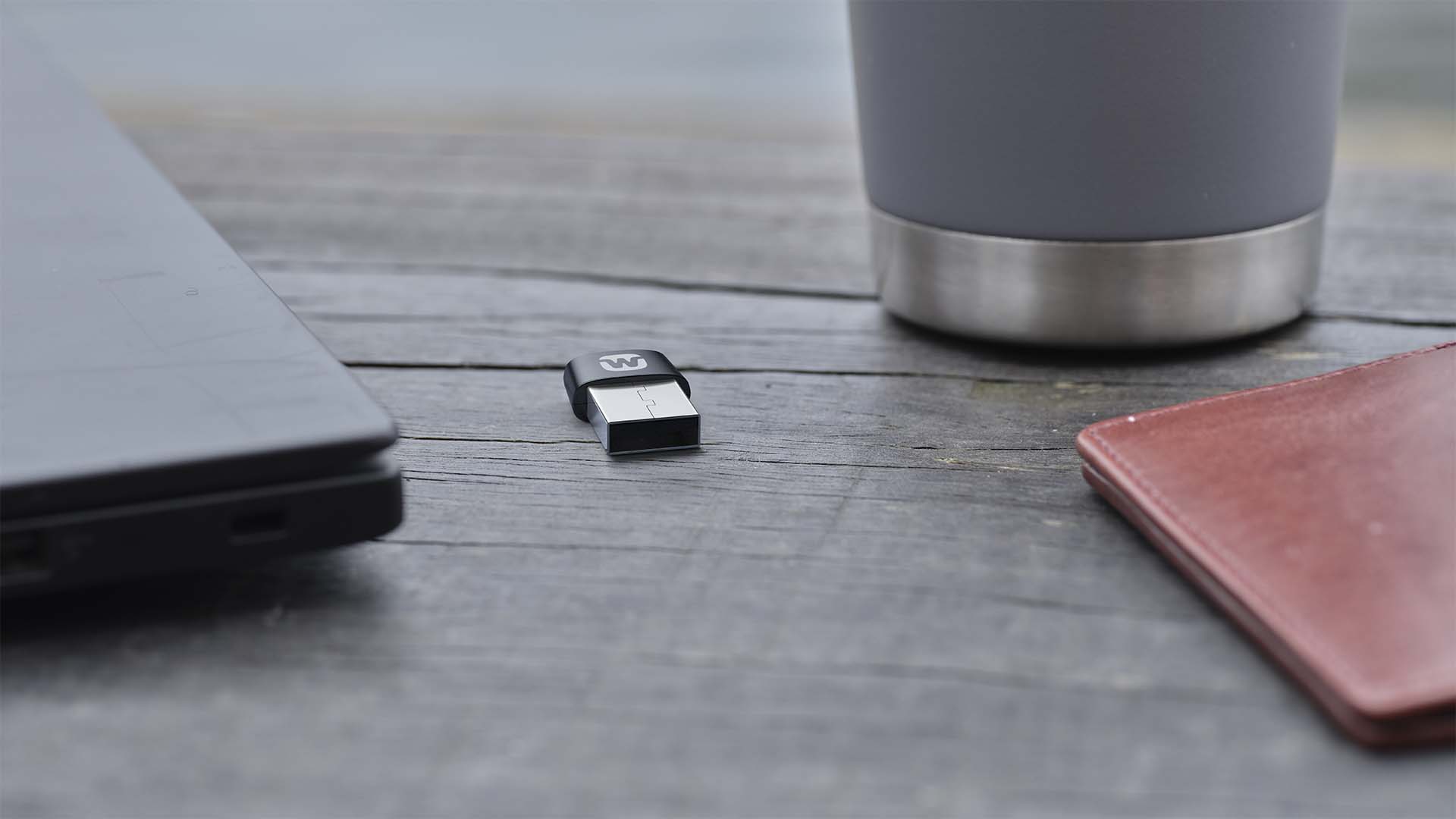
Widex Sound Connect
Díky funkci Widex SoundConnect můžete přenášet zvuk ve vysoké kvalitě z počítače přímo do svých sluchadel.

Widex Sound Assist
Aplikace Widex Sound Assist™ se připojí k vašim sluchadlům a pomůže vám lépe vnímat okolní svět.