Bluetooth pairing
Steps for pairing with iPhone:
1. Ensure Bluetooth is enabled in phone's settings.
2. On your iPhone, go to Settings > Accessibility > Hearing Devices.
3. Turn your hearing devices off and back on again.
4. Select your hearing aids from MFi hearing devices and press Pair for each hearing aid.
5. Once the devices show as 'paired', your hearing aids are now paired with your phone and are ready to stream music and calls.
6. Open the device specific app to connect your hearing aids to the app.
1. Ensure Bluetooth is enabled in phone's settings.
2. On your iPhone, go to Settings > Accessibility > Hearing Devices.
3. Turn your hearing devices off and back on again.
4. Select your hearing aids from MFi hearing devices and press Pair for each hearing aid.
5. Once the devices show as 'paired', your hearing aids are now paired with your phone and are ready to stream music and calls.
6. Open the device specific app to connect your hearing aids to the app.
Important: Before beginning, turn off the phone’s Bluetooth and then power off the phone. Power the phone back on and then turn Bluetooth back on. Skip steps 3-4 if the hearing aids have never been paired.
1. Power off your hearing aids -- exchangeable batteries: open the battery doors; rechargeable batteries: place the hearing aids in the charger.
2. Download Widex Moment or Widex Allure App from the Google Play Store depending on your hearing aid model.
3. Open the Widex Moment or Allure App
4. Turn BOTH hearing aids ON.
5. Select Pair your hearing aids
6. Select Search
7. Select Pair for each hearing aid.
Pairing is now complete. Perform a functional test to make sure things are working as expected.
Widex hearing aids use proprietary Bluetooth protocols for Apple (MFi - Made For iPhone) and Google/Android (ASHA - Audio Streaming for Hearing Aids) to stream audio to the hearing aids through a Low Energy Bluetooth signal. Not all Android phones support the ASHA protocol as implementation depends on the phone's manufacturer. For a list of Android phones we've tested to be ASHA compatible, please visit the device compatibility page. Widex Allure also supports LE Audio streaming with a compatible Android phone.
Accessory compatibility by hearing aid platform: Widex Allure: Compatible with TV-Play 2 and RC2-DEX. Widex Moment: Compatible with TV-Play 2, TV-Play, Sound Assist, SoundConnect, Com-DEX, Phone DEX 2 and RC2-DEX.
Widex Moment 2.4GHz can be paired with SoundConnect accessory to stream from your computer:
1. Insert the SoundConnect dongle into your computer's USB port.
2. Restart your hearing aids to initiate the pairing process.The hearing aids will be in the pairing mode for 3 minutes.
3. Press and Hold down the button on the SoundConnect until you see a flashing blue light, then release the button.
4. Ensure that the hearing aids and SoundConnect are within 1 meters of each other.
5. A solid green light on the sound connect indicates the pairing is successful. If the pairing is not successful, try keeping the Hearing aids on the top of the Sound Connect. You could try pairing one device at a time.
The best way to stream TV audio with Widex Hearing aids is to use TV Play or TV Play 2. Please check with your hearing care professional if your hearing aids are compatible with these accessories.
In the iPhone's Settings > Accessibility > Hearing Devices menu:
Play Ringtones : Controls whether an incoming call's ringtones play in the hearing aids
Play System Sounds: Controls whether system sounds like notification sounds, keyboard clicks, lock screen sounds, etc. stream into the hearing aids when the phone is not on Silent Mode. If this option is turned on and the phone is not in silent mode, the system sounds will not play through the phone speakers.
Audio Routing : Sets the default audio routing destination the iPhone uses for Call Audio and Media Audio (separate settings). If the option for Never Hearing Devices is selected, the iPhone will not default the associated audio type to the hearing aids. However, the hearing aids can still be manually selected to be streamed to through native iOS controls (see related topic in the FAQ section below).
Control Nearby Devices: This allows for the control of the hearing aid settings on iOS devices that are also paired to the hearing aids or share the same Apple ID. We recommend to turn this option off to avoid unexpected interference.
Audio Handoff: When on, this allows for one iOS device to take priority over another when it comes to streaming audio. We recommend to turn this option off to avoid unexpected interference
Hearing Aid Compatibility - this option is only used if the phone is held up to the hearing aids during a phone call with the call audio going through the phone's earpiece (i.e. the traditional way of answering a phone). If the phone call is streaming or is on speaker phone, this option has no effect.
Tapping on the hearing aids listed in that menu with the Connected status will reveal additional options:
Stream to right hearing device, Stream to left hearing device - allows the iPhone to stream audio to the hearing aids. Turn these off if you don't want audio streaming to the hearing aids but want to maintain a Bluetooth connection for remote control purposes.
Adjust Independently - allows independent control of Left and Right hearing aid microphone levels.
Microphone Level sliders - controls how loudly or quietly ambient sounds are amplified in the hearing aids.
Presets - these are the hearing aid programs added to your hearing aids by your hearing care professional.
Start Live Listen - turn your iPhone into a remote microphone. When on, hand the iPhone to a conversation partner and have them speak into the iPhone. The audio detected by the iPhone's microphone will stream directly into the hearing aids. When using this feature, you can increase the level of transmission by using the volume buttons on the side of the phone.
Forget this device - this unpairs the hearing aids from the iPhone.
Yes. In fact, if other iOS devices share the same Apple ID, this pairing may sync over to the other device via iCloud automatically. However, streaming can only take place one device at a time. Therefore, the best practice is to turn Bluetooth off on the device you are currently not streaming from. When you want to switch, first turn Bluetooth off on the device that is currently streaming to the hearing aids. This releases the hearing aids to be streamed to by the second device. On the second device, turn Bluetooth on. The hearing aids should automatically connect. Now try streaming. To switch back, follow the same workflow of turning Bluetooth off first on the streaming device and then on in the second device.
How to pair your hearing aids
Connectivity features
Quick start guides
Pairing guides for all Widex Moment™ bluetooth hearing aids
Troubleshooting
First, make sure the hearing aids are not clogged which will prevent streaming audio from being heard. If the hearing aid is amplifying your environmental sounds normally and it's just the streaming audio that is no longer coming through, follow the steps for unpairing and repairing in the appropriate section above.
Try to force close the app.
For iPhones, this involves using the gesture to reveal previously opened apps and swiping the Widex app away. See this Apple article for specific steps on how to accomplish that: https://support.apple.com/en-us/109359.
For Android phones, go to the phone Settings > Apps > Widex app > and choose to Force stop.
Reboot the phone> reopen the app and see if the Bluetooth connection establishes itself again.
If the issue still persists, check the Bluetooth permissions in the phone settings. You could try unpairing and repairing your hearing aids to the phone's Bluetooth. Open the app and test the connection.
If the app continues to fail the Bluetooth setup, uninstall and reinstall the app. After reinstallation, open the app, and test the connection to the hearing aids.
If while streaming, you use the volume buttons to raise the streaming level to 100% and the streamed audio is still too quiet, first make sure that the ear-tip/ earmold and the receiver of the hearing aids are clean and clear of any debris/earwax that could be blocking the sound output. If the output was blocked, amplification of environmental sounds would also not be optimal. If environmental audio sounds fine and the phone's streaming level is at 100% but still not adequate, access the app to adjust the volume during streaming. If the issue still persists, visit your hearing care professional.
For iPhone:
- Ensure Play Ringtones is turned ON. Go to Phone's settings> Accessibility> Hearing devices>ensure 'play ringtones' is turned ON.
- Go to the phone's Settings > Sounds & Haptics > increase the slider for Ringer and Alerts.
Android ASHA streaming:
Go to the phone's Volume menu (e.g. Settings > Sounds and vibration > Volume) and make sure that the Media slider is increased to an adequate level. Next, if the phone is on Sound mode, make sure the slider for the Ringtone is increased adequately. If the phone is on Vibrate, the ringtone will not stream in the hearing aids. If the phone is on Mute, the streamed ringtone level is controlled by the Media slider level and the ringtone will not play from the phone's speakers.
Android LE Audio streaming:
The volume of the streamed ringtone is controlled by the in-call volume (i.e. how loud you hear the caller). The next time you stream a phone call, raise the in-call volume using the volume buttons on the side of the phone. This will increase the streamed ringtone volume the next time someone calls. Do note that if the slider for Ringtone in the phone's Volume menu is too low, this will effectively mute the streamed ringtone also. If the ringtone playing from the phone is too loud, we recommend using the phone in Vibrate or Mute mode.
FAQs
Currently Widex hearing aids do not support Auracast. Although some hearing aids support Low Energy Audio, Auracast compatibility has additional hardware and software requirements. We are constantly monitoring the consumer electronics market for Auracast compatibility and adoption rates, especially when it comes to public infrastructure. Once Auracast has been integrated on a larger scale, we will react accordingly to ensure our future hearing aids will allow users to take advantage of Auracast devices and technology.
To reroute the audio to play through the phone's speakers, use the native controls.
For iPhone, use the AirPlay option in the iOS Control Center. See the following Apple article on how to open the Control Center: https://support.apple.com/en-us/108330
When the Control Center is open, tap on the AirPlay icon in the top right of the media box (box containing the rewind, play/pause, fast forward buttons). The icon may look like a triangle with lines coming out, an ear, or a speaker with a Bluetooth symbol. Tapping on this icon reveals a list of audio output destinations. Select the iPhone to output audio through the phone's speakers.
For Android, swipe down from the top (sometimes top right corner) of the phone screen to pull down the Quick Settings menu. Look for a Media output option. If there is one, tap on it and use it to select the destination for audio output. If there is no Media output option, look for a notification card belonging to the app that is streaming audio (e.g. Spotify). There should be a button within the card that indicates where the app is currently outputting audio (e.g. the hearing aids). Tap on it and select the phone to play the audio from the phone speakers.
When you are done sharing the audio through the phone speakers, use the same workflow to switch the audio routing back to the hearing aids.
If you have Widex Allure devices: Open the Widex Allure app while streaming audio. Adjust Phone volume vs surrounding volume to your preference. Also, you can tap "Adjust sound" and then adjust "Equalizer" via sliders for bass, middle, and treble frequency ranges. You can also use the buttons for more speech, more clarity, less sharp, and less echo, which will adjust the equalizer automatically.
If you have Widex Moment devices: Open the Widex Moment app while streaming audio. Tap the (search for image of the buttons in the app) and (image). You can adjust "Equalizer" via sliders for bass, middle, and treble frequency ranges. You can also use the buttons for more speech, more clarity, less sharp, and less echo, which will adjust the equalizer automatically. Alternatively, you can also access sound mixer to adjust for more surrounding vs more streaming.
If these adjustments do not work for you, please contact your hearing care provider for further adjustments.
Currently this feature is possible with Widex Allure for compatible iPhone models only.
Handsfree 2-way calling is currently available for Widex Allure RIC R D and compatible iPhone models. For Widex Moment, handsfree calling can be achieved via a Bluetooth accessory like Widex Sound Assist or Com-Dex. As per Low Energy Bluetooth protocol, in general, Bluetooth audio performance may be affected when the mobile device is placed in a pocket, as physical obstructions and body proximity can interfere with the signal transmission.
It's possible that the phone call is being handled through the HandsFree feature of the hearing aids where the hearing aid microphones are picking up your voice. Therefore, it's also possible that the hearing aid microphones are picking up too much background sound. Here are a few options to try:
iPhone:
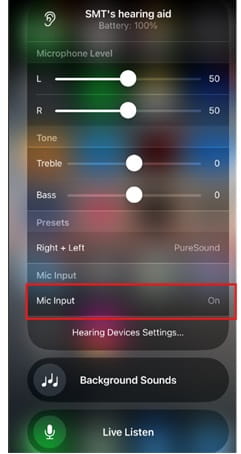
If HandsFree is being used, it can be turned off through the iPhone. When you are not on a call, access the MFi Hearing Devices shortcut menu by triple clicking the Side button (or Home button if supported) of the iPhone. If you see the hearing aids listed but there aren't more options underneath the hearing aids, tap on the listing to expand the menu. Scroll down and find the option for Mic Input. Turn Mic Input off. Now, instead of the hearing aid microphones picking up your voice, the iPhone microphone will. The iPhone microphone has more advanced features for filtering out background noise for voice detection during phone calls.
iOS device:
Go to Settings > Accessibility > Hearing Devices > Call Audio Routing > change either Call Audio or Media Audio to Never Hearing Devices. When set to Never, by default, the iPhone will not stream that specific type of audio to the hearing aids although the hearing aids can still be manually selected through the user interface of the phone (e.g. the Call screen or Control Center).
Android:
There is no method to have the phone default away from the hearing aids the phone's user interface can be used to switch audio routing away from the hearing aids (e.g. buttons on the Call screen or the pull-down menu for media audio routing - see FAQ above regarding sharing audio with others).
No, smart assistants like Siri cannot be activated using the hearing aids (e.g. tapping the hearing aids or pressing a button). Activate the smart assistant using voice commands as detected by the phone's speakers or using the phone's onboard controls.
No, starting and pausing streaming audio should be done on the phone screen using the user interface controls provided by the phone/streaming app.
Need more support? Try out these sections.

Widex apps

Device compatibility

Accessories
A BETTER WAY TO CONNECT
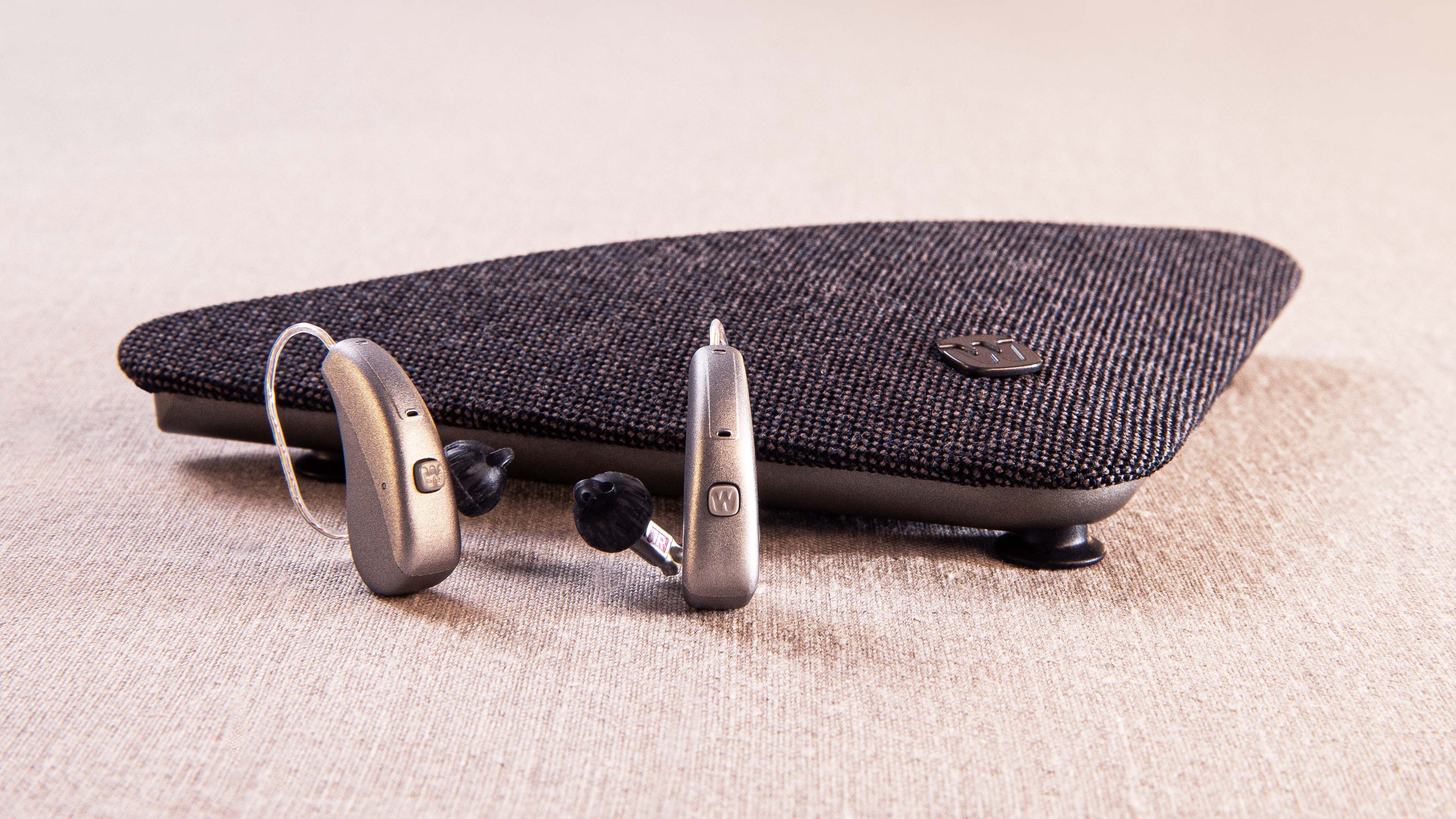
Widex TV Play
Enjoy stable, high-quality sound streamed directly from your TV to your hearing aids in style.
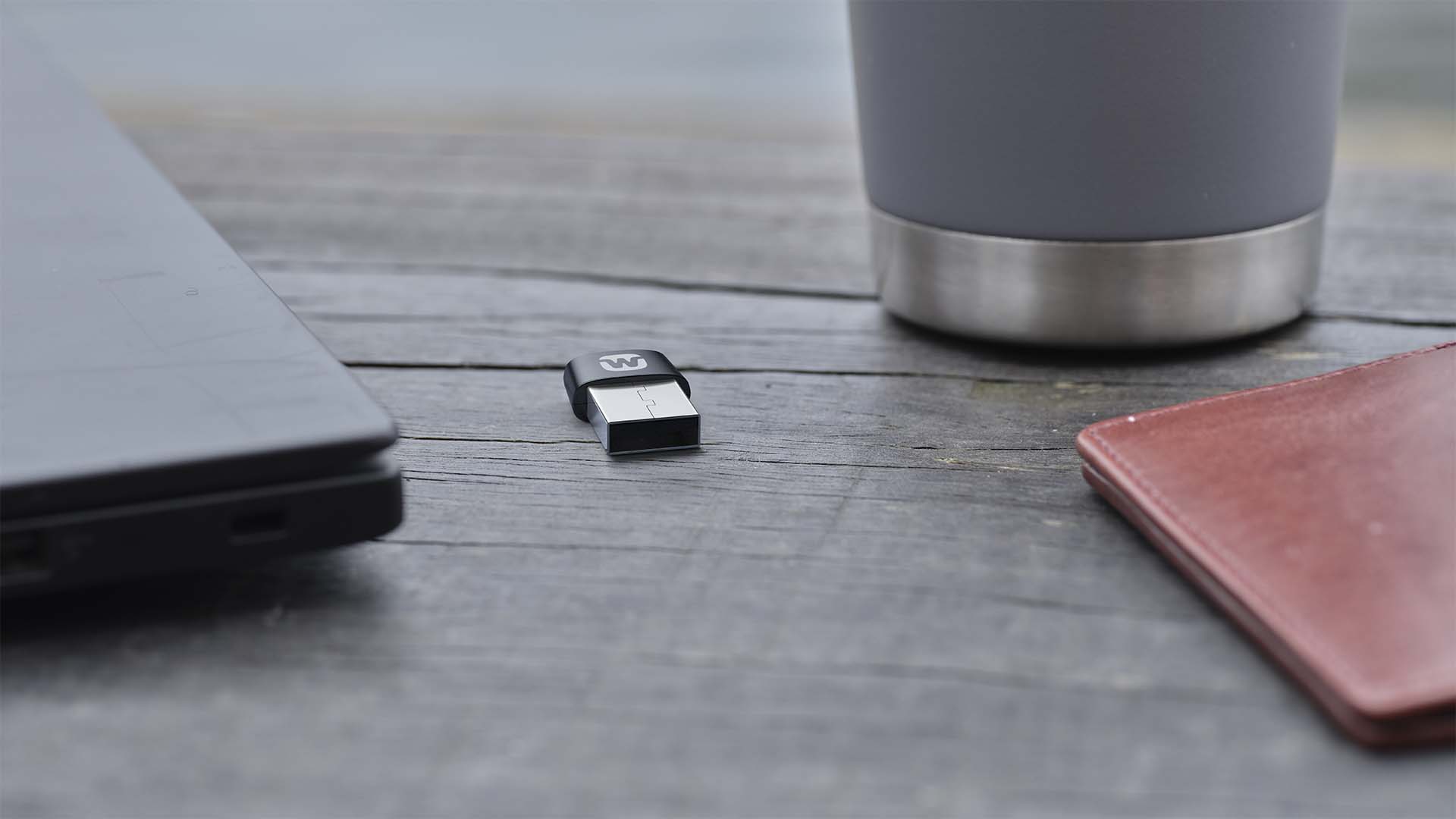
Widex SoundConnect
Widex SoundConnect allows you high-quality streaming audio from your computer directly to your hearing aids.

Widex Sound Assist
Widex Sound Assist™ connects to your hearing aids to help you hear your life better.